Booking.com deletes your check-in link ("Link Removed"): why it happens and how to fix it
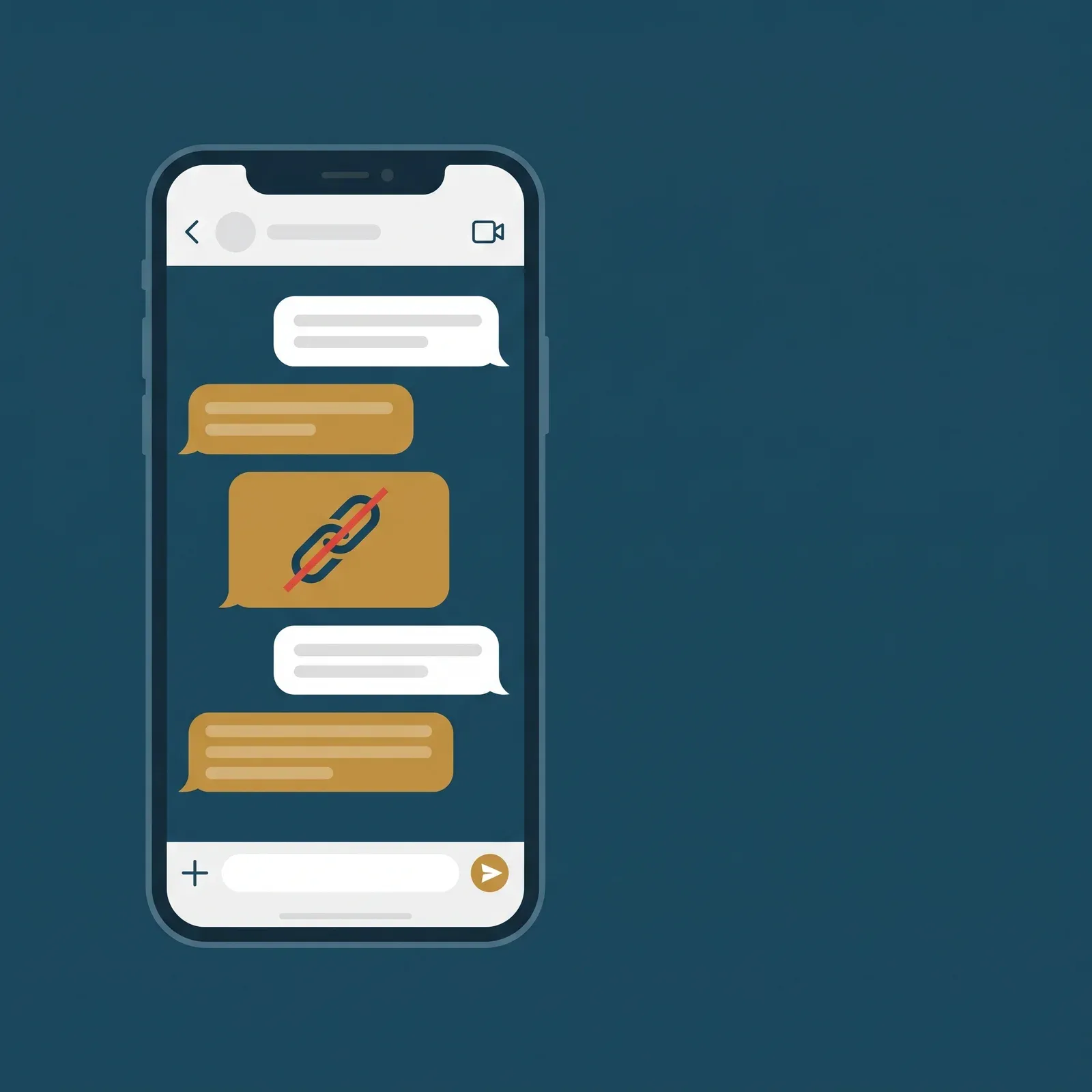
You send the pre-check-in link to your guest through the Booking.com chat and, when you receive it, the text appears instead of the link. [link removed] o [link deleted]. The guest cannot complete his data, he writes asking what is happening, and you end up dictating the link by phone letter by letter.
It is not a failure of your system or your link. It's a booking.com security filter, and it has a solution in less than five minutes. In this article we explain why it happens and how to authorize your links so that they always reach your guests.
Why Booking.com deletes the links of your messages
Booking.com applies an anti-phishing filter to your messaging. Its objective is to protect travelers from fraudulent links: If a scammer gets access to an accommodation account, he will not be able to send malicious links to guests.
The operation is simple: Any external links that are not previously authorized in the extranet of your property is automatically deleted y se sustituye por el texto “[Link removed]”. Esto afecta tanto a los mensajes que escribes a mano como a los que envía automáticamente tu PMS o tu herramienta de check-in online.
That is why sometimes you will see that in the same message a link survives and another disappears: the first points to an authorized domain and the second does not. The authorization is configured by property, not by company, so each accommodation must do it on its own extranet.
How to authorize your links in the Booking.com extranet
you will need Administrator permissions in the extranet account and have the Two-step verification (Booking will ask for it during the process).
- Access the Booking.com extranet with your administrator account.
- Go to the menu Accommodation (property) and enter Messaging Preferences (Messaging Preferences).
- Open the tab Security settings (Security Settings).
- Complete the two-step verification when Booking requests it (by SMS or through a Pulse app code).
- In the authorized links section, Add the domain you want to allow. If you use the pre-check-in of seshospedajes.es, the domain to be authorized is
seshospedajes.es. - If your tool also sends emails to guests through Booking, further authorize the sender email address on the same screen.
- Save the changes and send a test message to verify that the link is no longer deleted.
Do I authorize the full domain or the exact URL?
Authorize the complete domain. Online check-in systems generate a different link for each reservation (each guest gets their own custom link), so authorizing a specific URL doesn't work: The following reservation will have another URL and it would be blocked again. By authorizing the domain, all links that hang from it are allowed at once.
What does this configuration not solve?
So that you do not get surprises, it is convenient to be clear about what this adjustment does not do:
- It does not appear in all accounts. Booking.com is progressively deploying this setting. If you don't see the security settings tab on your extranet, it's not yet available for your hosting.
- Does not allow attaching files nor format the message. Booking messaging sends plain text: Bold, Colors, or HTML will not be displayed to the guest.
- It does not authorize links to other accommodations. If you manage several properties, you will have to repeat the configuration in each one.
- It does not affect other channels. The links you send by direct email, WhatsApp or SMS do not go through this filter and work normally.
A practical tip: send the link in two ways
Even if you have the authorized domain, it is good practice to include the link in your message twice: una como enlace clicable y otra como texto plano (“si no puedes acceder, copia y pega este enlace en tu navegador”). Así, si el huésped tiene problemas con su app o su cliente de correo, siempre tiene una alternativa para llegar al formulario.
The pre check-in of seshospedajes.es and Booking.com
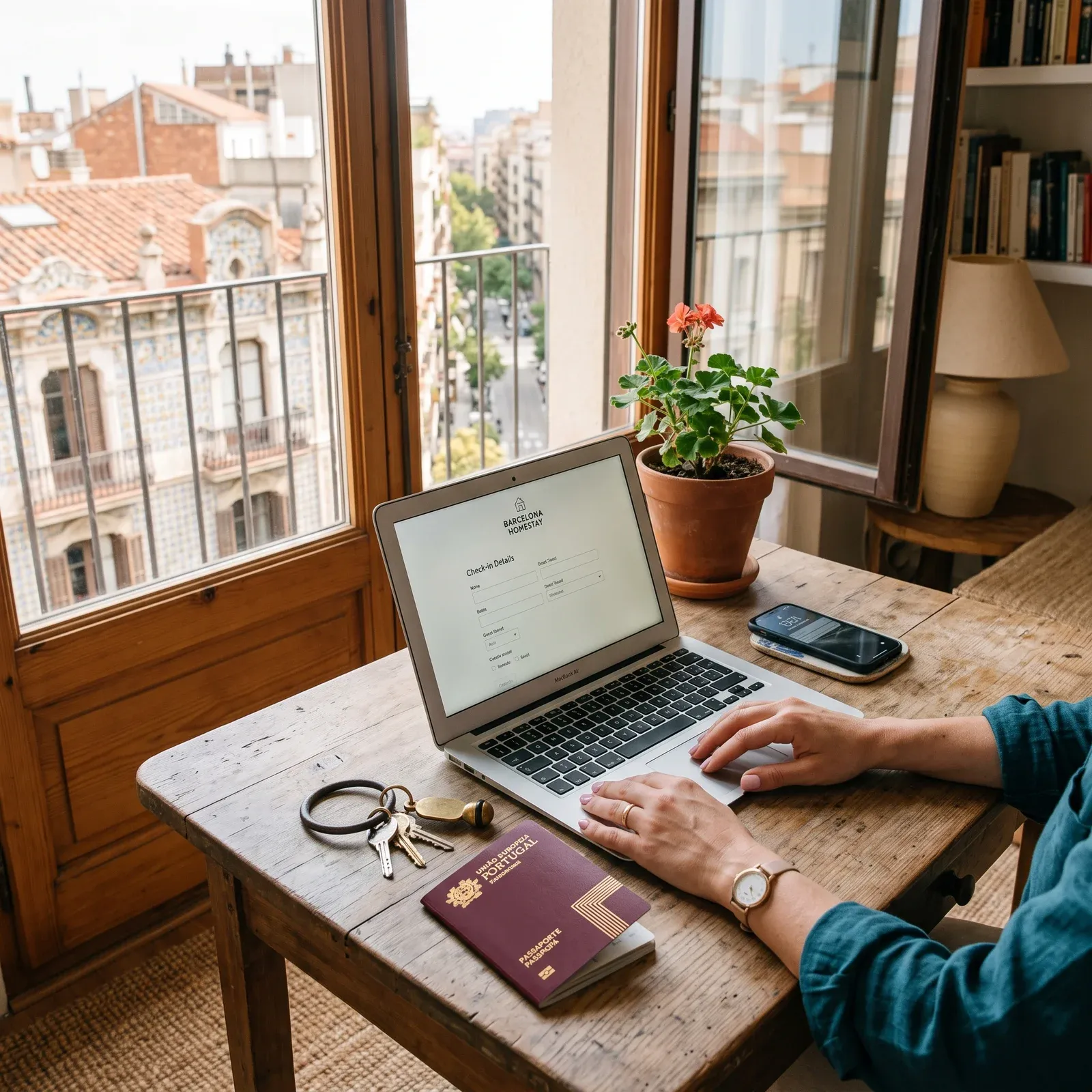
If you use the pre-check-in module seshospedajes.es, Each reservation generates a custom link under our domain. Just authorize seshospedajes.es Only once in the extranet of each property, following the steps above, so that all your pre-check-in links always reach your guests through the booking chat.
With the data that the guest completes before arriving, the traveler's registration is ready for shipment to the SES platform.
Still don't use pre check-in? It is available in our plans with the pre-check-in feature activated. Check the plans in seshospedajes.es/#prices.
Frequently asked questions
¿Por qué antes funcionaba y ahora aparece “Link removed”? Booking.com has been progressively activating this filter. If your links worked and stopped, the filter is most likely recently activated on your property. The solution is the same: Authorize the domain in the extranet.
I don't see the security settings tab. What do I do? Please first check that you are logged in with an administrator account. If it still doesn't show up, Booking hasn't enabled this option yet for your hosting and, in that case, the filter shouldn't be removing your links either. If they are also deleted, please contact Booking.com support for partners.
Do I have to repeat this for each reservation? No. Authorizing the domain once, all custom links for all future reservations are allowed.
Does this affect the sending of the traveler's part to the Ministry? No. The sending of data to the SES platform. Accommodations of the Ministry of the Interior is independent of the Messaging of Booking.com. This filter only affects the links you share with your guests by booking chat.